The first two weeks decide whether measuring becomes a habit. If the first days go smoothly, your team keeps measuring without being asked. This guide takes you through those two weeks with Waste Warrior Monitor, in care and in a restaurant: logging in, measuring, checking the AI and reading your dashboard.
Want to know first how to set up a baseline measurement, with an owner, the right waste streams and a sound measuring period? Then read Food waste baseline measurement: a step-by-step plan for care. This article is about the day-to-day practice in the app.
Before you start: the app, logging in and who measures
Installing the app
The app is called Waste Warrior Monitor and shows up on your phone as "moni". It works on iPhone and Android. The app supports Dutch and English; we quote its Dutch labels with a translation. A phone is all you need: no scales and no camera above the bin.
Logging in with a code
There's no password. Your administrator adds you; after that, you log in with your email address.
- Enter your email address and tap "Stuur inlogcode" (send login code).
- You'll receive a 6-digit code by email. It's valid for 10 minutes. Nothing arrived? Check your spam folder too.
- Enter the code. The app logs you in straight away.
The first time, the app asks what to call you, and for access to your camera. The app doesn't work without the camera, so tap "Geef toegang" (allow access). If you work at several locations, you switch under "Profiel" (profile), at "Locatie" (location).
Who measures, and when?
Agree in advance who measures: one regular person per ward or kitchen, plus a stand-in for days off. Fix the moment too. In care, that's straight after the meal, before the plates go back to the kitchen. In a restaurant, whenever the bins are emptied and at the end of the day.
Ideally, measure every meal on every ward that takes part. If that's too much, start with the hot meal, but measure it every day. A gap in the series makes comparisons hard.
A plan for your first two weeks
Milieuplatform Zorgsector (MPZ), the Dutch environmental platform for the care sector, advises measuring for at least two weeks "how much food is thrown away at different points in the process" (our translation) (MPZ, food and catering dossier). That way every weekday is in there twice, and outliers count for less. It works just as well in a restaurant.
A plan that works:
- Day 1. Take the first measurements together with someone who knows the app. Check the results together right away.
- Days 2 to 5. Let the regular measurers do it themselves. Have a quick look at the dashboard each day to see whether any meals or days are missing.
- End of week 1. Briefly discuss what stands out. Can't measure everything? Then choose fewer moments that you can keep up.
- Week 2. Keep measuring the same way. Don't change portions or the menu yet, or you'll be measuring your own adjustment.
- After day 14. Look at the dashboard together and choose where to start.
A measurement in care, step by step
In the care version, you measure per meal. After the meal, you photograph what comes back.
- Start the measurement. On the home screen, tap "Nieuwe meting starten" (start new measurement).
- Check the details. Choose the "Afdeling" (ward) and the "Moment": "Ontbijt", "Lunch", "Avondeten" or "Tussendoor" (breakfast, lunch, dinner or in between). Under "Aantal personen" (number of people), enter how many people ate; the app uses this for grams per person. Under "Inkoop" (purchases) you link what was bought. More on that in the next section.
- Tap "Start meting". The camera opens. The measurement gets the date and time of that moment, so measure on the day itself.
- Choose what you're photographing. At the bottom of the viewfinder, pick the type. For "Bord", "Schaal" or "Pan" (plate, serving dish or pan), the AI estimates how many grams are left. You weigh "Drank" and "Anders" (drink and other) yourself and enter the weight right after the photo.
- Only photograph what has leftovers. An empty plate doesn't need a photo. Hold your phone straight above the plate and make sure it fits in the frame. Include the serving dishes and pans that come back too; they show what was never served.
- Finish with "Klaar" (done). Tap "Ja, afronden" (yes, finish). The photos go to the AI, and with "Bekijk live" (watch live) you see the results come in.
Interrupted? Tap the cross and choose "Opslaan en sluiten" (save and close). The measurement then shows as "Incompleet" (incomplete) on the home screen, and "Hervatten" (resume) lets you carry on.
Afterwards you'll see a summary with the waste percentage, the grams per person and, per ingredient, what came back. Under "Info" you can change the measurement's details afterwards.
Linking purchases: delivery notes, purchase groups and "Weet ik nog niet"
A kilo of waste only means something next to what was bought. That's why you link the purchases to a measurement. At "Inkoop", the app asks: "Waar komt deze maaltijd vandaan?" (where does this meal come from?). You have four options:
- "Kies uit de inkoop" (choose from purchases). You pick a delivery note and a purchase group you've already prepared.
- "Nieuwe bon inscannen" (scan a new note). You scan a delivery note and turn it into a group straight away.
- "Zelf invullen" (enter it yourself). You enter the dishes with their total weight.
- "Weet ik nog niet" (don't know yet). You measure now and link later.
Scanning a delivery note
On the "Inkoop" tab, tap "Scan pakbon" (scan delivery note). Lay the note straight in the frame and take the photo. The AI reads the supplier, the delivery note number and the products with their weight. Check the lines under "Pakbon controleren" (check delivery note) and tap "Pakbon opslaan" (save delivery note). If it can't be read, choose "Handmatig invullen" (enter manually).
Dividing the note into purchase groups
One delivery often covers several meals. That's why you divide a delivery note into "inkoopgroepen" (purchase groups). Tap "Nieuwe inkoopgroep" (new purchase group), give it a name, such as "Lunch · zaal 1", and choose which products and how many grams belong to it. The app shows how much of the note is still left to divide. Once a purchase group has been used in a measurement, it's locked.
"Weet ik nog niet"
Don't have the purchase details to hand? Choose "Weet ik nog niet". The app then works with an average purchase: a standard portion of 500 grams per person, times the number of people. That's less precise, but you can carry on right away. Link the real purchases later through "Info" in the summary.
Why this matters: the more measurements with real purchases, the more reliable your percentage. The dashboard shows how many used the standard purchase.
Measuring in a restaurant: camera, daily total and guests
The restaurant version works differently. There's no measurement to start and no purchase to link. You photograph what's thrown away and weigh the bins at the end of the day.
Before you start
Under "Profiel", at "Afdeling", choose which kitchen or section you're measuring for. Everything you photograph and weigh is filed under it. Want to link plate waste to a dish? Then set up your menu in the web app under "Menus", with the ingredients of each dish and their weight per portion.
Taking photos
- Tap "Camera openen" (open camera) and photograph what you're throwing away.
- The app asks: "Wat voor afval is dit?" (what kind of waste is this?). Choose "Keukenafval" (kitchen waste: peelings and trimmings), "Koelkastafval" (fridge waste: past its date or spoiled) or "Bordenafval" (plate waste: leftovers back from the table).
- Is it plate waste from a specific dish? Choose "Koppel gerecht aan foto" (link dish to photo) and pick the dish. The course being served right now is already selected.
- Take the next photo, or tap "Klaar".
Forgot to measure? "Datum wijzigen" (change date) puts a photo on another day, for example after midnight.
The daily total and guests
At the end of the day, weigh the bins. On the "Dagtotaal" (daily total) tab, tap "Weging toevoegen" (add weighing), choose the type of waste and enter what the scale says. Also enter the number of guests under "Gasten". That gives you waste per guest, so you can compare busy and quiet days fairly.
The "Overzicht" (overview) tab shows how much of the weighed daily total your photos explain. That stays below 100%, because the bin also holds packaging. The higher the percentage, the better you can see what ends up in the bin.
Reminders
The restaurant version reminds you at fixed times: at 12:00 for fridge waste, at 14:00 for kitchen waste, at 18:00 for plate waste and at 21:00 with "Vul je dagtotaal in" (enter your daily total). They're on by default. Under "Profiel", at "Herinneringen" (reminders), you switch each one on or off. The times themselves are fixed. The care version has no reminders; agree on fixed moments there.
Read more about the waste streams in a restaurant kitchen in Measuring food waste in restaurants: what it costs and where to start.
Checking and correcting the AI
The AI recognises the food in a photo and estimates the grams for each ingredient. It's an estimate, not a weighing. That's why the app says "naar schatting" (estimated). A person always has the final say.
In the first week, check every measurement. You'll learn how the AI sees your plates.
- Open a photo and tap an ingredient.
- In "Ingrediënt aanpassen" (edit ingredient) you change the name, the food group or the amount. The app shows the AI's original estimate alongside.
- Tap "Opslaan" (save). If an ingredient is completely wrong, choose "Verwijder ingrediënt" (remove ingredient).
The photo total and the measurement's percentage are recalculated straight away. An ingredient the AI missed can't be added at the moment.
With "Verwerken mislukt" (processing failed), the app first retries by itself; if it still fails, tap "Opnieuw proberen" (try again). "Geen eten gevonden" (no food found) usually means the photo was too dark or taken at an angle. Shoot straight from above, with enough light.
How reliable a photo estimate is, and where it falls short, is covered in How reliable is measuring food waste with photos and AI?
Measuring without an internet connection
No Wi-Fi on the ward or in the basement? That needn't be a problem. The app then shows "Geen verbinding" (no connection) at the top.
- Care. Starting a measurement needs a connection. Once the camera is open, you can take photos offline. They're kept on the phone, even if the app closes, and sent when you tap "Klaar" or "Opslaan en sluiten". If that fails, the app tries again once the connection is back.
- Restaurant. Photos join a queue and are sent automatically once the connection returns, even after the app restarts.
- Always online: scanning a delivery note, adding a weighing and entering the number of guests.
After two weeks: how to read the dashboard
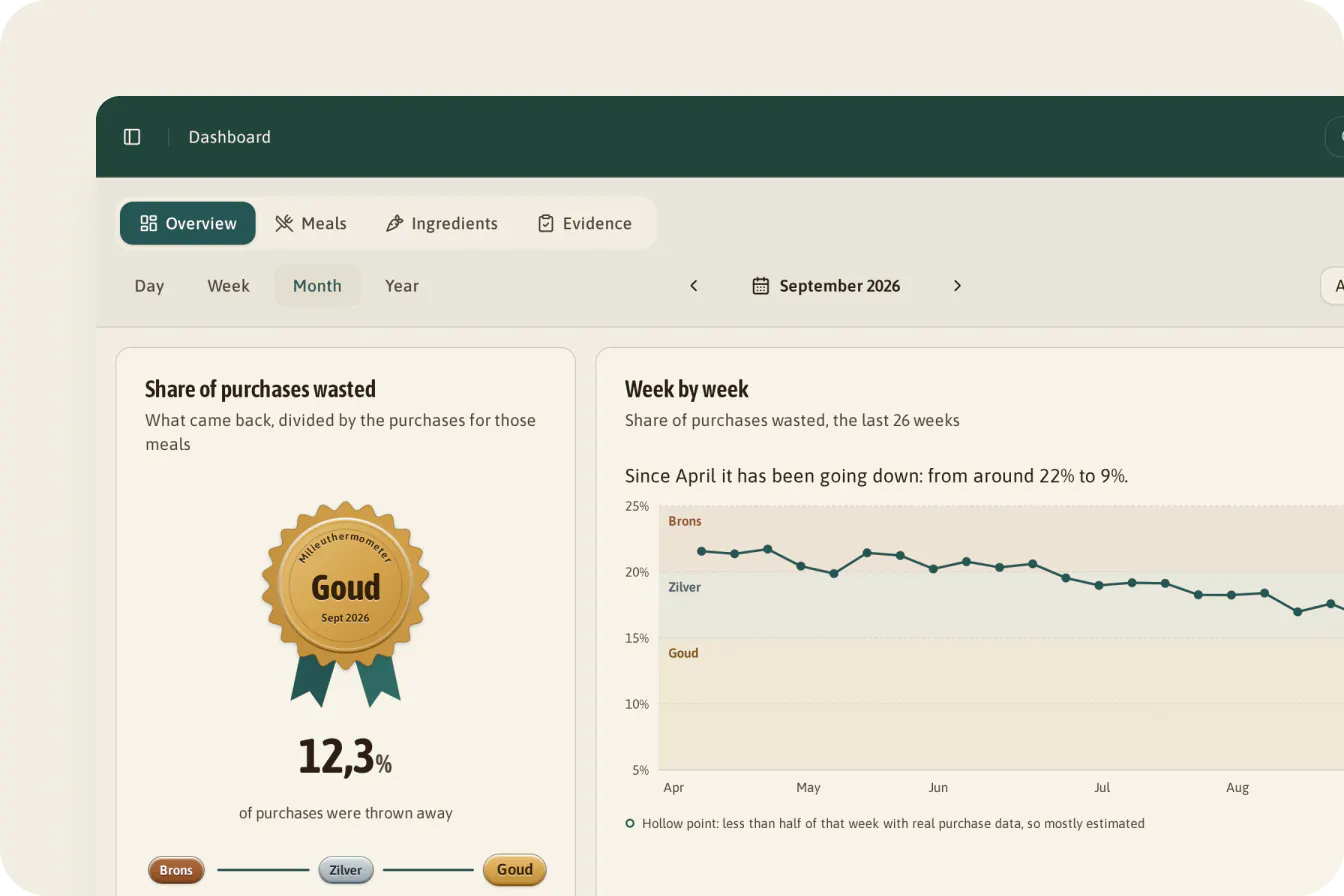
You open the dashboard on your computer or tablet, in the Waste Warrior web app under "Food waste". It shows the current month by default. You can choose a day, week, month or year, and filter on "All departments" or a single one.
In care
- "Share of purchases wasted". The key figure: what percentage of the purchases was thrown away, with the kilos and the grams per person.
- An indicator: Goud, Zilver or Brons (gold, silver or bronze). Goud is 15% or less of the purchased weight, Zilver up to and including 20%, Brons above that. This is our own indicator, not an official Milieuthermometer Zorg level. Requirement 7.3 of the Milieuthermometer Zorg, the Dutch environmental certification for care, asks for no more than 20% of the purchased weight and is mandatory for silver and gold. The Milieuthermometer's gold level is defined differently. Read more in Milieuthermometer Zorg: how to measure food waste for requirement 7.3.
- "Week by week" and "Per department". After two weeks you'll see the first line, and which ward stands out. A hollow point in the chart means that week was calculated mostly with the standard purchase.
- "Where it ended up". The difference between "Not eaten" (plates) and "Not served" (serving dishes and pans). The first points to portion size, taste or appetite, the second to cooking too much.
- "Thrown away the most". The ingredients that come back most, with photos.
In a restaurant
- "In the kitchen". The weighed daily total, with the share your photos explain.
- "Out of the kitchen". The plate waste you linked to a dish.
- "Per guest". The daily total divided by the number of guests, on days when you entered both.
- Dishes. A chart of how often you photographed a dish as plate waste and how much was left on the plate. If a dish lands in the quadrant "Popular and lots left: portion too big?", you know where to start.
A restaurant doesn't get Goud, Zilver or Brons. That indicator belongs to care.
Want to record the outcome for your plan, your board or an audit? Then you export a report.
Start with "What's missing"
Start your review on the "Evidence" tab, at "What's missing". It lists meals not measured per ward, measurements with an estimated purchase and failed photos. For a restaurant, it shows open days without a weighing and days without guests. The less that's missing, the more you can rely on the figures.
From measuring to less waste
After two weeks you have a starting point. Choose one thing to change: a portion, a dish, how food is served or an order. Then keep measuring the same way, and your week-by-week trend shows whether it works.
Don't change everything at once, or you won't know what made the difference. And remember why you measure: the right amount and the right dish, not less food. How to read the figures by meal, ward and ingredient, and which measures work, is covered in Reducing food waste in care: what do you do with the figures?
Short answers to specific questions are in the frequently asked questions about measuring in practice and about the Monitor app.
How Waste Warrior Monitor helps in your first weeks
Waste Warrior Monitor measures food waste with a photo. Staff get an app they can use with one hand, the office gets a dashboard. In care, you measure per meal and ward, and see the waste as a share of purchases. In a restaurant, you see kitchen, fridge and plate waste per dish, next to your team's daily weighing of the bins.
Your team can adjust every AI estimate, and image recognition runs in the EU. You don't need any hardware, and you're not tied to a long contract.
Curious how it would work in your kitchen? Plan a demo, then start small, with a pilot at one location.